If a PC cannot automatically connect to your DOF Reality platform, follow these steps:
1. Disconnect all devices from your computer except the control unit.
2. Disable Bluetooth on your computer.
3. Close SimRacingStudio (SRS) and SMC3Utils.
4. Open Device Manager → Go to Ports (COM & LPT).
-
There should be only one device listed (the control unit) or 2 if you have an H6/P6.
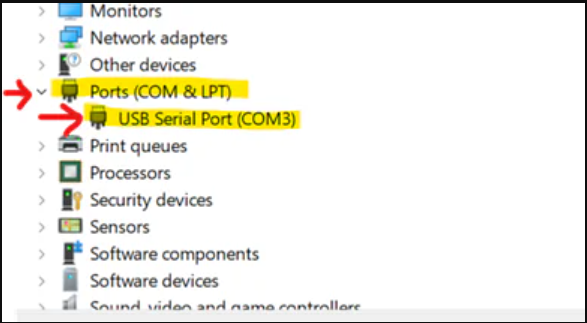
-
To confirm it’s the correct device, unplug the USB cable, then plug it back in. The device should disappear and reappear.
-
If multiple devices are listed, repeat the steps until only one remains.
5. Wait for more than 5 minutes and check if the device remains in the list without disappearing.
If the connection to the control unit is not stable, follow these steps:
-
In Windows, disable USB power saving: Control Panel → Power Options → Advanced Settings → USB selective suspend → “Disabled”. Also, in Device Manager, under each “USB Root Hub” uncheck “Allow the computer to turn off this device to save power.” Here’s how to disable it: https://www.minitool.com/news/how-to-disable-usb-selective-suspend-settings.html
-
Use rear motherboard USB ports directly (no hubs, adapters, or extenders). Use a short, shielded USB cable.
-
Route the USB cable separately from motor/power supply cables, ideally with ferrite filters.
-
Make sure your PC and the control box are connected to the same power strip (common ground).
-
If direct connection is still unstable, some users reported success with a powered USB hub connected to a root port — but only try this if the steps above fail.