What to send so we can diagnose your technical issue faster
Send your technical support request to [email protected]. Your email will automatically create a ticket for the DOF Reality Technical Support team.
Providing the information below helps us understand the issue, identify the affected component, and give you useful next steps in our first reply. Send the basic information for every issue, then add the advanced diagnostics only when they apply.
Information to Send for Every Technical Issue
Include the following in your email:
- Order number, purchaser name, or email address used for the purchase
- Platform model, such as M2, H2, H3, H4, H6, P2, P3, P4, or P6
- Computer or console being used and the simulation title, if applicable
- Motion software and version, such as Sim Racing Studio or SimHub
- A clear description of what happens and what you expected to happen
- When the issue began and whether the platform previously worked correctly
- Any error message, beep pattern, warning light, or unusual sound
- Troubleshooting steps already completed and the result of each step
- Recent changes, such as a firmware update, software update, cable change, moved equipment, or newly installed accessory
Use a subject line that identifies the platform and symptom, for example: H3 One Motor Does Not Move.
Record the Issue
Before recording, fully close Sim Racing Studio, SMC3Utils, DOF Reality Tools, SimHub, and any other motion-control software to allow startup and calibration without any software interference. If the issue occurs only when software is running, record a second video showing the fault.
Send two short videos when possible:
- Startup and calibration video: Show the platform from before power is applied until startup or calibration finishes. Position the camera so DOF Reality Technical Support can see the movement of all available axes.
- Fault video: Show the complete symptom from startup through the failure. Keep the platform, motors, control boxes, and relevant cables visible. Record the control-box lights or beep pattern and keep the original audio.
Do not recreate a dangerous fault. If the platform cannot be powered safely, send photos and describe the last observed movement instead.
Capture the Firmware and Configuration
- Download https://dofreality.com/tools.zip and extract all files to a local folder.
- Close all motion-control applications.
- Run the DOF Reality Tools application as Administrator and follow the on-screen instructions.
- After the firmware version and configuration appear, use the Windows Snipping Tool or another computer screenshot tool to capture the entire window.
Example screenshot:
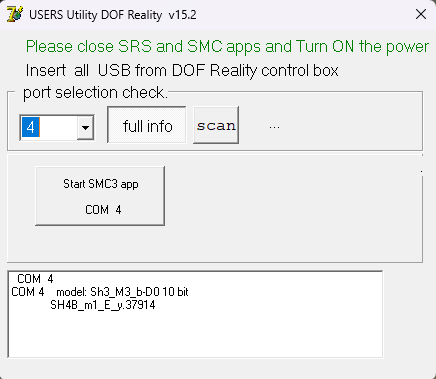
- Save the screenshot with a clear name, such as H3 Configuration or H6 Left Control Unit Configuration.
For an H6 or P6 with two control units, capture the configuration from both units whenever possible. Connect and check one control unit at a time.
Add SMC Screenshots for Motion or Motor Problems
Complete this section for issues involving a motor, axis, sensor or encoder, calibration, incorrect movement, a control box, intermittent USB/COM communication, or a platform that powers on but does not move. For software-only, title-telemetry, VR, accessory, or account issues, these screenshots may not be needed.
Follow the DOF Reality How to Start SMC Sine Mode article before moving any motor. Keep the platform unoccupied. If the test instructions require the motor rods to be disconnected from the moving frame, complete that step before applying power.
- Fully close SRS, SimHub, DOF Reality Tools, and other motion-control applications.
- Launch “SMC3Utils 1.02.exe” only after confirming that there is a single device in Device Manager/COM & LPT. If this does not work, edit the “COMM_PORT=” in the “SMC3Utils.ini” file to match the port number in Device Manager/COM & LPT. Each control box has a specific port number. Test one box at a time.
- In SMC, check that the calcs/sec field is not empty. If the calcs/sec field remains blank, there is no communication between the control board and the SMC application. Try manually entering the correct port number in the “SMC3Utils.ini” file and reconnect. No communication can also be a result if Sim Racing Studio or other motion control software is not turned off, a bad USB cable, a bad USB connector, or a defective control board. If you are getting error messages about the COM port communication, you haven’t set the port number properly.
- Run the Sine mode test in SMC for at least 1 minute.
- After this time, take proper screenshots. Use only Windows Snipping Tool or a similar screenshot tool (avoid using your phone).
- Name the screenshots logically (e.g., “L1” – motor #1 in the Left control unit) and repeat this process for all motors.
If SMC3Utils does not connect, the test cannot run, or the platform cannot be tested safely, stop and tell us the exact step, COM port, and error message. The failure itself is useful diagnostic information.
Attach or Share the Files
Attach the following to your email when they apply:
- Fault video and written description
- Startup and calibration video
- Firmware and configuration screenshot for each control unit
- SMC screenshot for each motor tested
- Photos of damaged parts, loose connections, warning lights, or cable routing
- Relevant SRS screenshots, logs, or title settings for software and telemetry issues
If the files are too large for email, upload them to Google Drive, OneDrive, Dropbox, or a similar service. Set access so anyone with the link can view the files, then paste the share link into the email. Check the link in a private browser window before sending it.
Do not send passwords, payment-card information, or other sensitive account credentials.
Email Template
- To: [email protected]
- Subject: [Platform model] [Short description of issue]
- Order number or purchasing email:
- Platform model:
- Computer or console:
- Simulation title:
- Motion software and version:
- Issue description:
- When it began:
- Errors, beeps, lights, or unusual sounds:
- Troubleshooting already completed and results:
- Recent hardware, software, or firmware changes:
- File or cloud-folder link:
- Diagnostics I could not complete and why:
After the ticket is created, reply to the same email thread when adding results or files. This keeps all diagnostic information together and prevents duplicate tickets.