

If a PC cannot automatically connect to your DOF Reality platform, follow these steps:
1. Disconnect all devices from your computer except the control unit.
2. Disable Bluetooth on your computer.
3. Close SimRacingStudio (SRS) and SMC3Utils.
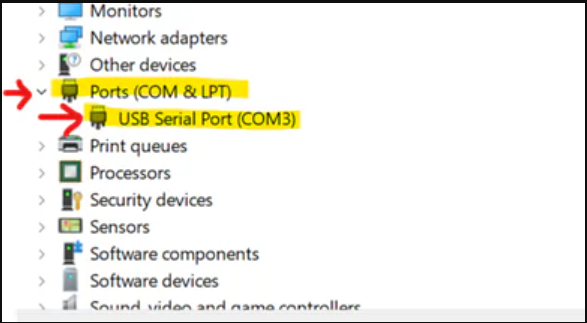
4. Open Device Manager → Go to Ports (COM & LPT).
-
There should be only one device listed (the control unit) or 2 if you have an H6/P6.
-
To confirm it’s the correct device, unplug the USB cable, then plug it back in. The device should disappear and reappear.
-
If multiple devices are listed, repeat the steps until only one remains.
5. Wait for more than 5 minutes and check if the device remains in the list without disappearing.
If the connection to the control unit is not stable, follow these steps:
-
In Windows, disable USB power saving: Control Panel → Power Options → Advanced Settings → USB selective suspend → “Disabled”. Also, in Device Manager, under each “USB Root Hub” uncheck “Allow the computer to turn off this device to save power.” Additional guidance on how to disable USB power saving is below.
-
Use rear motherboard USB ports directly (no hubs, adapters, or extenders). Use a short, shielded USB cable.
-
Route the USB cable separately from motor/power supply cables, ideally with ferrite filters.
-
Make sure your PC and the control box are connected to the same power strip (common ground).
-
If direct connection is still unstable, some users reported success with a powered USB hub connected to a root port — but only try this if the steps above fail.
How to Disable USB Selective Suspend Settings Windows 10/11
Way 1: via Control Panel
Step 1. Type control panel in the search bar and hit Enter.
Step 2. Set the View by option to Category.
Step 3. Click on System and Security > Power Options.
Step 4. Hit Change plan settings beside your current power plan and then tap on Change advanced power settings.
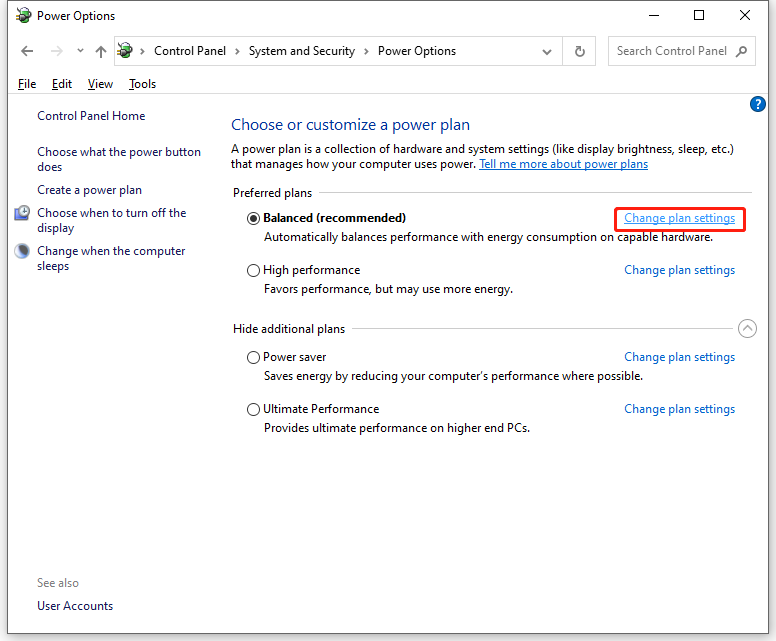
Step 5. Expand USB settings > USB selective suspend settings > Double-click on Enabled beside Settings > select Disabled.
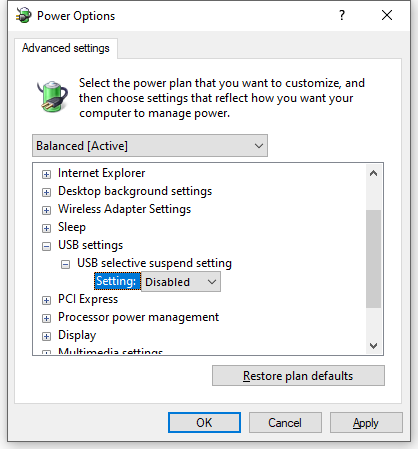
Step 6. Click on Apply & OK to save the changes.
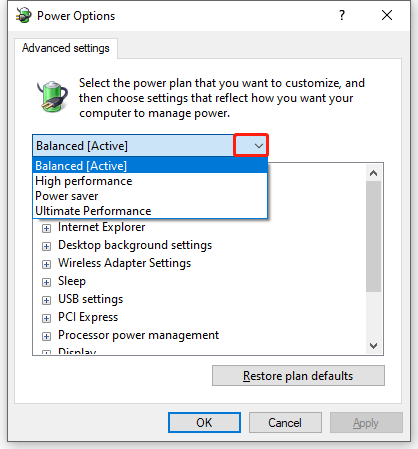
To disable USB selective suspend settings for another power plan, you can click on the drop-down menu to select the other power plan and repeat these steps above
Way 2: via Device Manager
Step 1. Right-click on the Start icon and select Device Manager from the quick link menu.
Step 2. Expand Universal Serial Bus controllers and right-click on Generic USB Hub or USB Root Hub to select Properties.
Step 3. Under the Power Management tab, untick Allow the computer to turn off this device to save power.
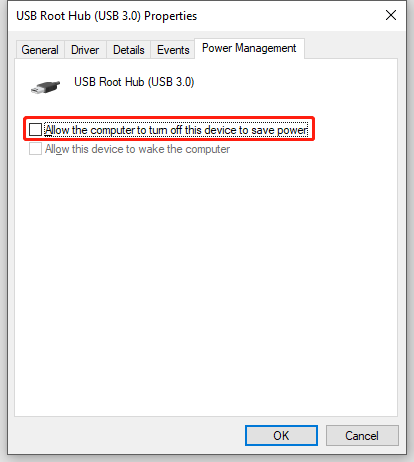
Step 4. Hit OK to save the setting.
