If the amount of movement in the VR image is too much and you do not want to turn down the motion, you can utilize motion compensation software which removes the platform movement from the VR image. You have a few options:
- Best way is to use OpenXR: OpenXR Motion Compensation Setup : Sim Racing Studio
- Alternative SimRacingStudio Motion compensation premium feature: Motion Compensation
- OpenVR Motion Compensation is the current software to be utilized for motion compensation which can be downloaded here: OpenVR Motion Compensation.
OpenVR Motion Compensation will track the movement of a tracker mounted on the platform and remove the motion of the platform from the movement of the VR headset. OpenVR Motion Compensation can work with both types of VR headsets (base stations and inside-out tracking).
OpenVR Motion Compensation Tutorial Video:
Motion Compensation Tutorial / OpenVR Motion Compensation with a Valve Index on a DOF Reality P6
OpenVR Motion Compensation Install and Setup:
Install and Setup | OpenVR Motion Compensation
There are primarily two types of VR headsets and they require the tracker to be mounted differently:
- Ones that utilize base stations (outside-in) for tracking of the VR headset movements such as the Valve Index, HTC Vive Cosmos, Pimax 5k/8k*, and the original Oculus Rift (CV1).
- The other type utilizes cameras in the headsets that provide inside-out tracking which include the HP Reverb/G2, Oculus Quest/Quest 2/Rift S**, Samsung HMD Odyssey+, and other Windows Mixed Reality (WMR) type headsets.
For VR headsets that utilize base stations, a tracker or controller (Valve Index Controller, HTC Vive Controller, HTC Vive Tracker) must be mounted on the motion platform and be in-line of sight by all the base stations. It doesn’t matter where the tracker is mounted as long as it’s visible to all the base stations, though typically they are mounted near the head at the top of the chair.
For VR headsets that utilize inside-out tracking via the cameras on the headset, a controller (Oculus Touch Controller or WMR Controller) must be mounted on the front of the motion platform so it is in-line of sight of the cameras on the headset.
In either case, the tracker must be:
- Firmly mounted to the platform.
- Must utilize some type of vibration mitigation.
Vibration mitigation can be achieved by:
- Adding additional mass/weight to the mount so it absorbs vibration energy.
- Using a vibration absorption material like soft rubber or sorbothane.
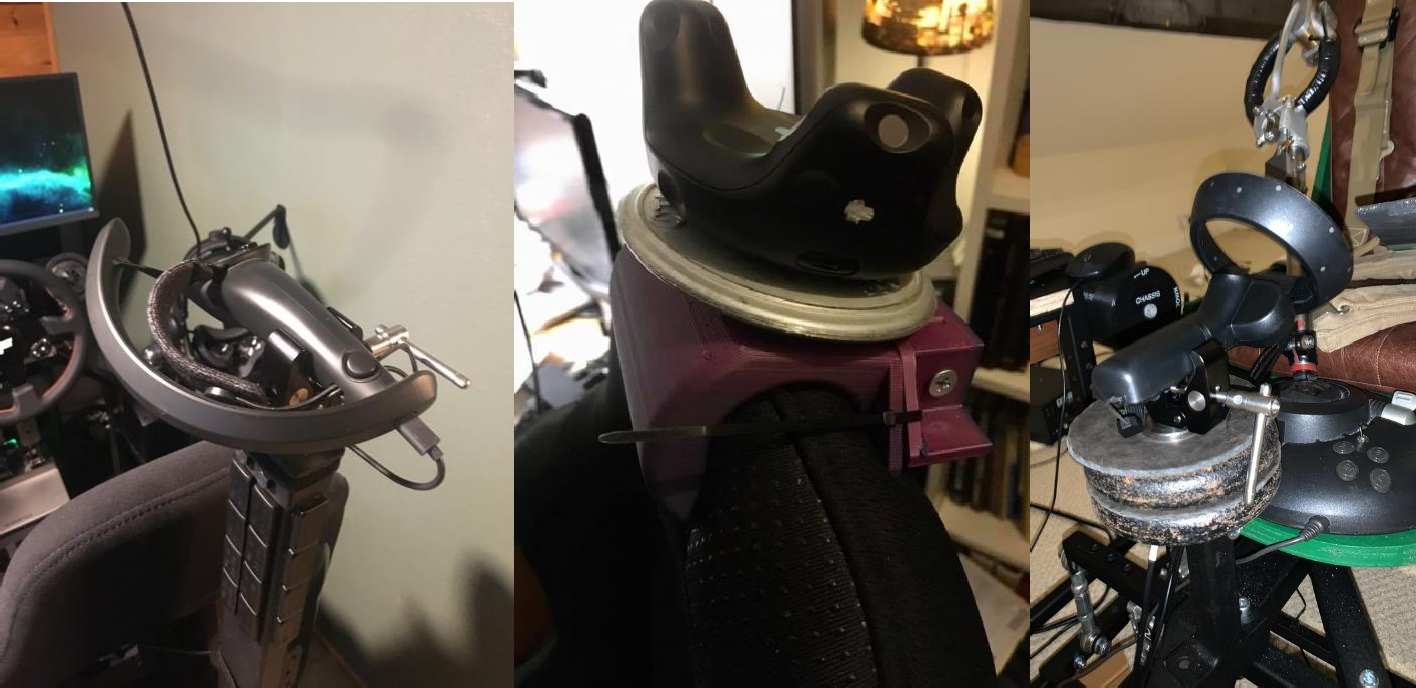
Another potential software solution is the older version of motion cancellation called OpenVR Input Emulator.
Though it is no longer being developed, there is still limited support from the community via its download page here: Releases · matzman666/OpenVR-InputEmulator.
- HTC Vive/Vive Pro: HTC Vive/Vive Pro VR Motion Cancellation Setup Guide Using Iracing Software (JMB3D)
- Oculus Rift setup: Oculus Rift Motion Cancelling
* For Pimax users, the PiTool can potentially be utilized for VR Motion Compensation: Pimax. In PiTool, turn on a Valve Index controller, select it as the sensor in PiTool “MotionCancellation“ and open the game. However, support is not guaranteed and may not work properly.
** The Oculus driver for SteamVR is made by Valve and not by Oculus as they only support their own closed ecosystem. This causes issues with:
- Big motions on Oculus devices might see a black border on the edge of your view.
- Rotation is not always compensated correctly.